
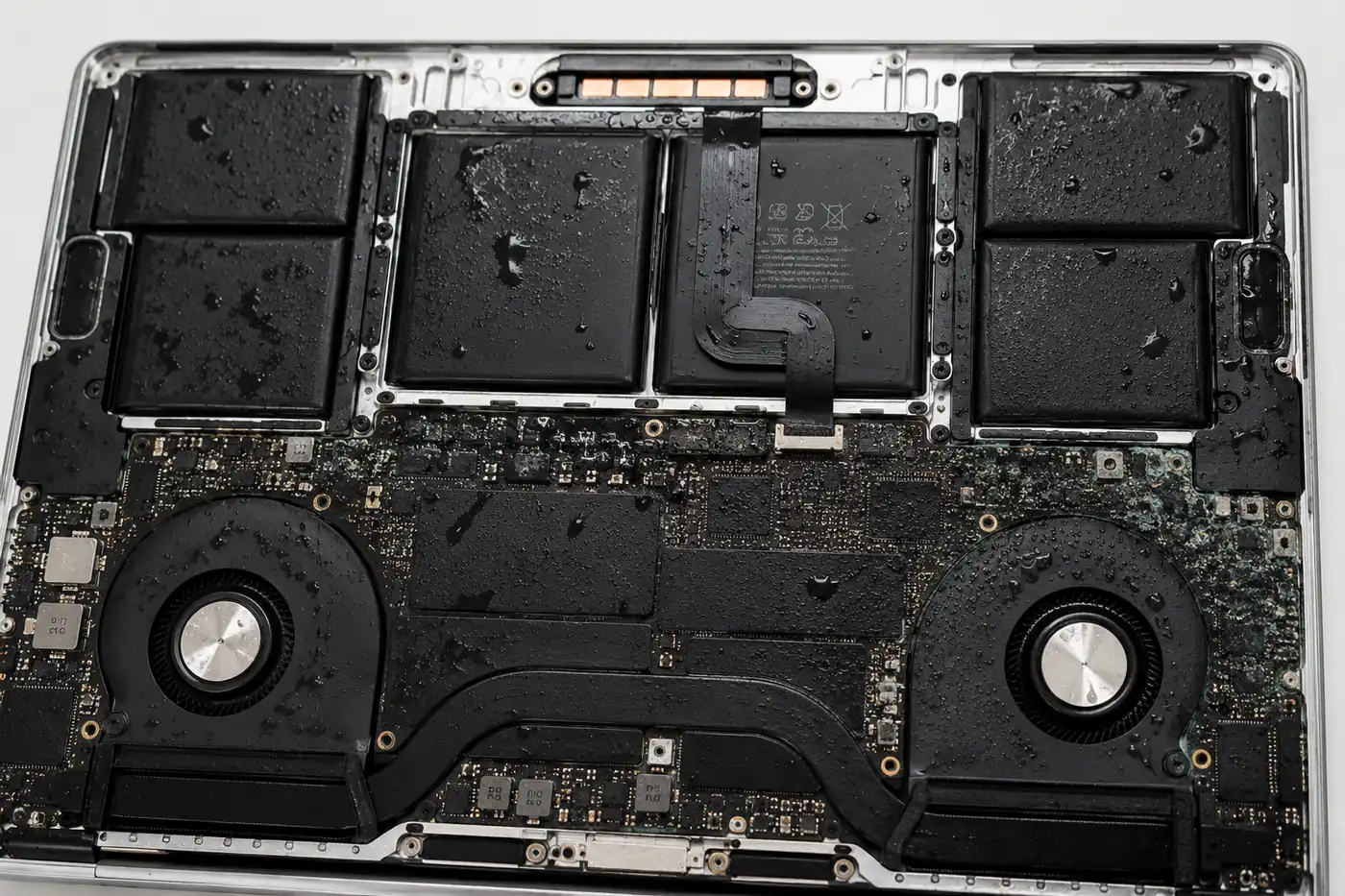
Spilled water, coffee, tea or another liquid on your MacBook?
Turn it off immediately and avoid connecting the charger. Even if the MacBook still works, liquid can remain inside and cause corrosion or electrical damage.
LaptopFixNZ provides professional MacBook water damage repair in Christchurch, including cleaning, diagnostics and component-level logic board repair for MacBook Air and MacBook Pro models.
What To Do Immediately After Spilling Liquid on Your MacBook
Follow these steps right away to reduce the risk of further damage
Turn It Off
Shut the MacBook down immediately. Do not keep testing the keyboard, trackpad or display.
Disconnect The Charger
Remove the USB-C or MagSafe charger and unplug all connected accessories.
Do Not Turn It Back On
Repeatedly trying to power on a wet MacBook can cause additional short circuits.
Do Not Put It in Rice
Rice does not remove liquid or corrosion from internal electronic components.
Bring It In Quickly
The sooner your MacBook is inspected after a liquid spill, the better the chance of limiting corrosion and further damage.
MacBook Water Damage Repair Specialists in Christchurch
Spilled water, coffee, tea or another liquid on your MacBook? Even if the MacBook still turns on, liquid can remain inside and cause corrosion, charging faults or logic board damage over time.
LaptopFixNZ provides professional MacBook water damage repair in Christchurch for MacBook Air and MacBook Pro models. We inspect the affected components, clean liquid residue and corrosion, and carry out component-level logic board repairs where required.
Our workshop in Wigram, Christchurch is equipped for board-level diagnostics and microsoldering, allowing us to repair many faults without replacing the entire logic board.
How Much Does MacBook Water Damage Repair Cost in Christchurch?
MacBook water damage repair costs depend on the model and how far the liquid has spread inside the device.
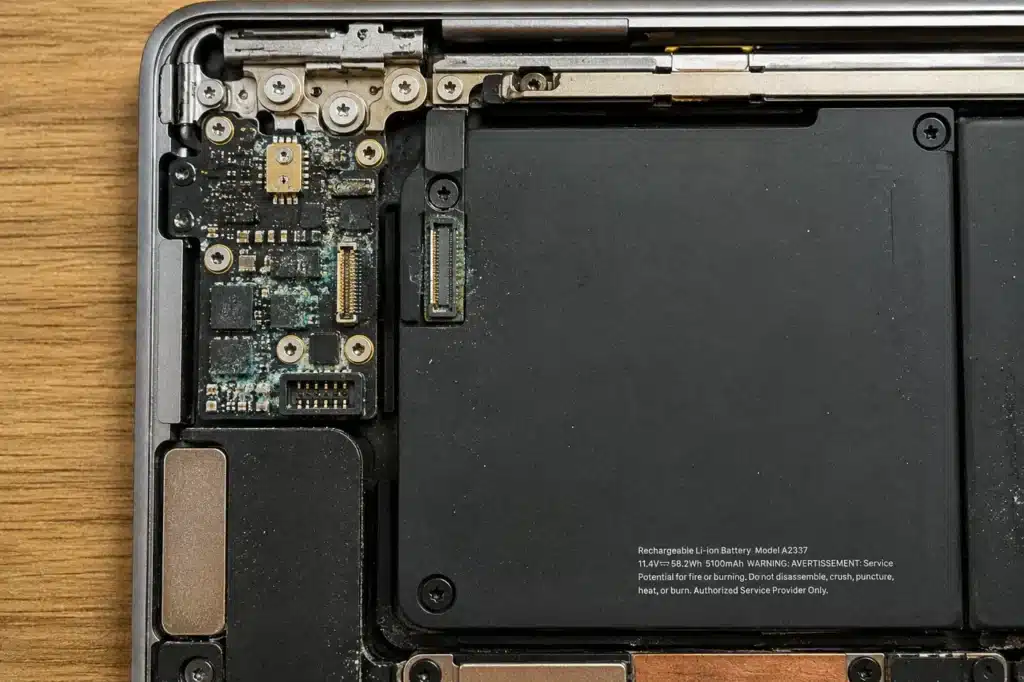
A small spill may affect only the keyboard, trackpad or charging connector, while more serious liquid damage can cause corrosion, short circuits or failure of the MacBook logic board.
MacBook logic board liquid-damage repairs typically range from $350 to $800, depending on which components need to be repaired or replaced.
If additional parts such as the keyboard, trackpad, battery or screen are damaged, we will provide a quote before proceeding with those repairs.
We inspect the MacBook first so we can identify the actual fault rather than replacing unnecessary parts.
MacBook Liquid Damage Logic Board Repair
A liquid-damaged MacBook does not automatically need a complete logic board replacement.
LaptopFixNZ performs component-level MacBook logic board repair in Christchurch. We locate the damaged circuit and repair individual components where practical instead of automatically replacing the entire motherboard.
We May Repair:
- Charging circuits
- USB-C controllers
- Power-management circuits
- Shorted power rails
- Backlight circuits
- Corroded connectors
- Damaged ICs
- Burnt or corroded components
- Broken board-level connections
Our MacBook Water Damage Repair Process
Liquid damage can affect the logic board, charging circuits, keyboard, trackpad, battery and other internal components. Every spill is different, so we inspect the MacBook first and identify the damaged areas before recommending a repair.
Initial Inspection
We identify the MacBook model, ask what liquid was spilled and review what happened after the spill.
Internal Inspection
The MacBook is opened and inspected for visible liquid residue, corrosion and damaged components.
Board-Level Diagnosis
We test affected logic-board circuits and power rails to locate short circuits, charging faults and other board-level damage.
Cleaning and Repair
Liquid residue and corrosion are cleaned, and damaged board-level components are repaired or replaced where practical.
Reassembly and Testing
The MacBook is reassembled and tested for charging, battery detection, keyboard, trackpad, display and normal power operation.
Spilled liquid on you MacBook?
Avoid turning it back on and bring it for inspection as soon as possible
Is My Data Safe After MacBook Water Damage?
In many cases, your data may still be recoverable after MacBook liquid damage, especially if the MacBook was switched off quickly and has not been repeatedly powered on after the spill.
On many modern MacBook models, the SSD storage is integrated with the logic board rather than being a removable drive. Because of this, if the logic board is badly damaged, repairing the original board may be necessary to regain access to your files.
At LaptopFixNZ, we diagnose liquid-damaged MacBooks at board level and, where practical, repair the original logic board rather than immediately replacing it. This can be especially important when the MacBook contains valuable photos, documents, business files or other data that has not been backed up.
If your data is important, tell us before we begin the repair. We can take that into account during diagnosis and avoid unnecessary work that could affect your recovery options.
The chances of successful data recovery depend on the MacBook model, the type and amount of liquid, which circuits were damaged, and whether the MacBook was powered on after the spill.
MacBook Water Damage Repair Reviews
Customers across Christchurch trust LaptopFixNZ for MacBook repairs, including liquid damage, charging faults and logic-board repairs.LaptopFixNZ has over 165 five-star Google Reviews. Here are a few reviews from customers who used our service.
Kath Clark ⭐⭐⭐⭐⭐
“I have had my MacBook Air fixed twice… Both times I was very grateful that their ‘fix’ was very successful, the second being water damage… Very friendly, quick service, their communication was excellent.”
Jess P ⭐⭐⭐⭐⭐
“My ‘irreparable’ liquid damage and charging port replacement were fixed within days and sent back to me safe and sound… I would highly recommend the LaptopFix NZ team for any laptop repairs.”
Olena Zhuravska ⭐⭐⭐⭐⭐
“I spilled liquid (soap) on my laptop a few weeks ago. LaptopFixNZ did amazing work and great turnaround on my liquid damaged laptop. I highly recommend these guys”
MacBook Liquid Damage Repair in Wigram, Christchurch
LaptopFixNZ provides MacBook water and liquid damage repair from our workshop in Wigram, Christchurch.
We help customers from:Wigram, Hornby, Halswell, Riccarton, Addington, Burnside, Papanui, Cashmere and surrounding Christchurch areas.
Workshop:
1 Romanee Lane, Wigram, Christchurch
Outside Christchurch? NZ-wide mail-in repair is available.
MacBook Water Damage Repair FAQ
Can a water-damaged MacBook be repaired?
Yes, many liquid-damaged MacBooks can be repaired. The repair required depends on the affected components and severity of the electrical damage or corrosion.
What should I do immediately after spilling liquid on my MacBook?
Turn the MacBook off, disconnect the charger and avoid trying to turn it on again. Have it inspected as soon as practical.
Should I put a wet MacBook in rice?
No. Rice does not remove internal contamination or corrosion and is not a substitute for professional inspection and cleaning.
My MacBook still works after the spill. Should I still have it checked?
Yes. Moisture or residue can remain inside the MacBook and cause corrosion later even if it continues to work immediately after the spill.
Can liquid damage cause a MacBook not to charge?
Yes. Liquid can damage the USB-C or MagSafe port, charging controller, battery connector or logic-board charging circuitry.
Can you repair the logic board instead of replacing it?
Where practical, yes. LaptopFixNZ performs component-level logic-board repair for corrosion, short circuits, charging faults and other board-level problems.
Other MacBook Repairs in Christchurch
We offer a full range of MacBook repair services. If your MacBook has a different issue, we can help get back to perfect working condition.
MacBook Battery Replacement
Fast battery replacement for all MacBook Air & Pro models. High-quality batteries with warranty.
MacBook screen Replacement
Cracked, broken or flickering screen? We replace MacBook screens with high-quality parts.
MacBook Logic Board Repair
Component-level repair for no power, charging faults, short circuits and other board-level failures.
MacBook Keyboard Repair
Sticky keys, unresponsive keyboard or trackpad? We repair or replace to restore full function.
Learn More→
Mac Data Recovery
Lost or inaccessible data? We can help recover your important files from faulty MacBook.
Learn More→