
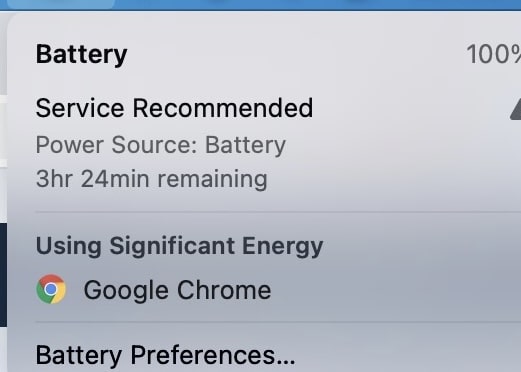
What Does “Service Recommended” Mean on a MacBook?
If your MacBook says “Service Recommended”, you may be wondering whether the battery needs attention or if you can continue using it normally. The message does not necessarily mean that your MacBook is about to stop working or that the battery must be replaced immediately. It means macOS has detected that the battery is not performing normally or is holding less charge than it could when it was new.
In this guide, we’ll explain what the warning means, where to check your battery condition and how to decide whether you need to do anything about it
What Does “Service Recommended” Mean on a MacBook?
MacBook batteries are rechargeable lithium-ion batteries that gradually lose capacity as they age.
As the battery goes through charge cycles, it eventually holds less energy than it did when it was new.
macOS monitors the condition of the battery. If it detects reduced capacity or abnormal battery behaviour, you may see:
Service Recommended
Older versions of macOS may instead display messages such as:
- Service Battery
- Replace Soon
- Replace Now
These messages are battery-condition warnings. They do not necessarily mean the MacBook itself has a serious fault.
Can You Keep Using a MacBook With “Service Recommended”?
In many cases, yes.
If the MacBook operates normally and its battery still lasts long enough for your needs, you may be able to continue using it.
The warning becomes more relevant when it is accompanied by noticeable problems, such as:
- significantly shorter battery runtime
- unexpected shutdowns
- unusual changes in battery percentage
- the MacBook shutting down shortly after being disconnected from power
If none of these problems are occurring, you don’t necessarily need to take immediate action simply because the message has appeared.
How to Check Your MacBook Battery Health
On recent versions of macOS, go to:
Apple menu → System Settings → Battery → Battery Health
Here you can check the condition of the battery and, on supported models and macOS versions, information such as maximum capacity.
You can find additional battery information through:
Apple menu → About This Mac → System Report → Power
This section may display information including:
- cycle count
- battery condition
- charging status
These details can provide a better picture of the battery’s condition than looking at battery percentage alone.
What Does MacBook Battery Cycle Count Mean?
Maximum capacity compares the battery’s current ability to hold charge with its capacity when it was new.
As a battery chemically ages, this percentage gradually decreases.
However, you shouldn’t make a decision based only on a percentage.
If your MacBook still provides sufficient battery runtime and operates normally, reduced maximum capacity may not be an immediate problem.
If the reduced capacity is noticeably affecting how long you can use the MacBook away from a charger, then having the battery assessed may be worthwhile.
What If Your MacBook Battery Is Swollen?
Physical swelling is different from ordinary battery ageing.
If you notice the bottom case lifting, the trackpad becoming difficult to click, or visible distortion around the case, stop using the MacBook and have it inspected.
Do not puncture, press or attempt to flatten a swollen lithium-ion battery.
Does “Service Recommended” Mean Your MacBook Has a Charging Fault?
Not necessarily.
Battery condition and charging faults are different issues.
A MacBook can display Service Recommended while still charging normally. Likewise, a MacBook that won’t charge can have a problem that isn’t caused by the battery.
Charging problems can involve the power adapter, cable, USB-C or MagSafe connection, or internal charging circuitry.
If the main problem is that your MacBook won’t charge, diagnosing the charging fault is more useful than relying only on the battery-health message.
When Should You Have the Battery Checked?
It may be worth having the battery checked when Service Recommended is accompanied by noticeably poor battery performance, unexpected shutdowns or other unusual behaviour.
A physical change such as battery swelling should be treated more urgently.
If your MacBook continues to operate normally and the available battery runtime still meets your needs, replacement may not be immediately necessary.
What Should You Do Next?
Start by checking Battery Health and considering how your MacBook actually performs away from the charger.
The Service Recommended message is useful information, but it should be considered together with the battery’s real-world performance.
If your battery no longer provides enough runtime or testing confirms that replacement is appropriate, see our MacBook battery replacement in Christchurch page for model-specific pricing, availability and service information.
If you’ve already had your battery replaced, read our guide to MacBook battery care after replacement for practical advice on looking after a new battery.