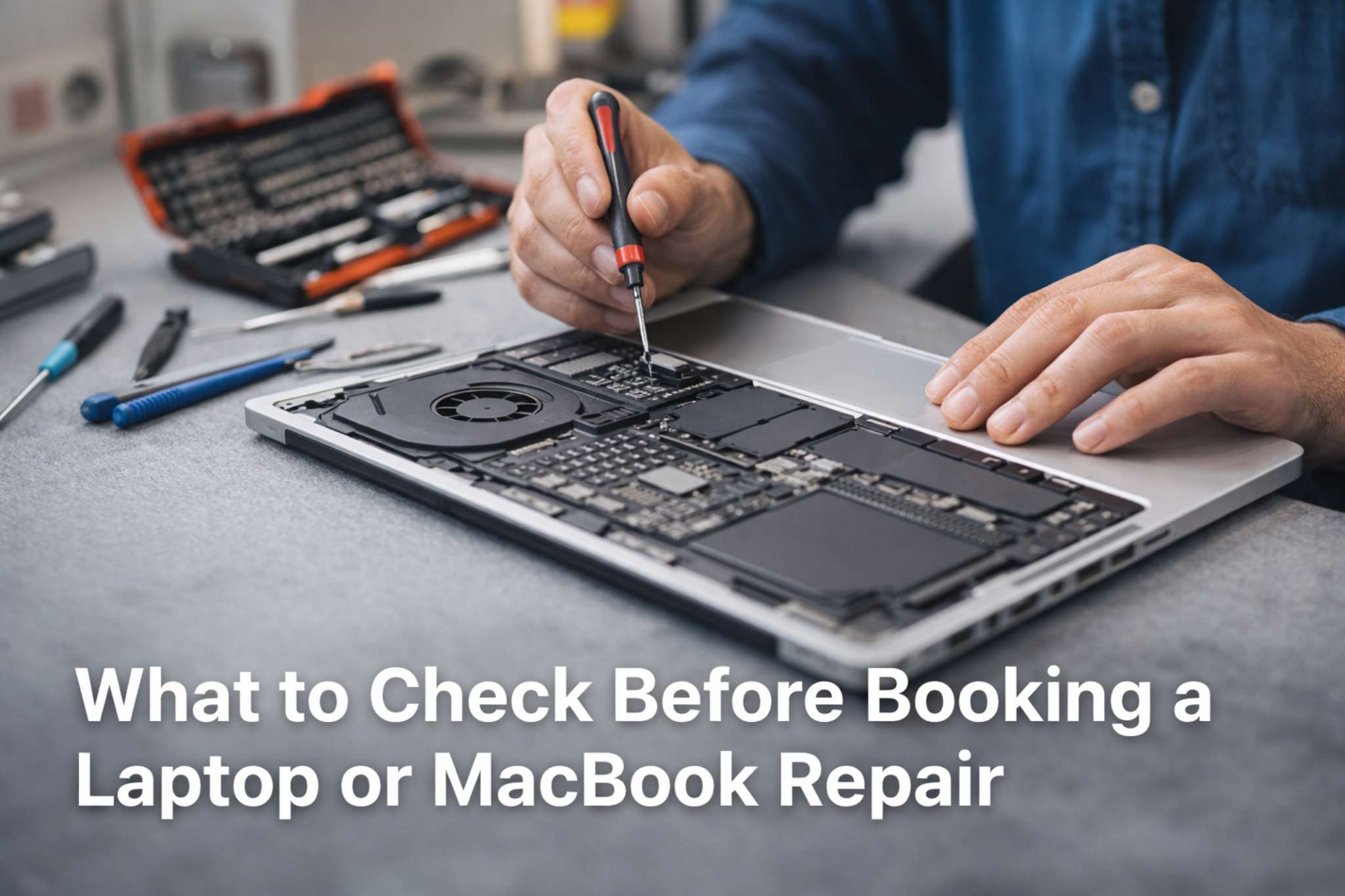
What should you check before booking a laptop or MacBook repair? This guide explains what to look for before choosing a repair shop. This article explains what to check before booking a laptop or MacBook repair so you can choose a repair shop more confidently.
When your laptop, MacBook, desktop, or game console stops working, choosing a repair shop can feel stressful. You want a repair that is done properly, priced fairly, and explained clearly.
Before booking a repair, it helps to know what questions to ask and what warning signs to watch for. This guide explains how to compare repair options, understand the quote process, and make a better decision before handing over your device.
1. What To Check Before Booking A Laptop Or MacBook Repair
The first step is understanding the type of problem you have. This helps you choose a repair shop that actually works on your kind of fault.
Common device problems include:
- cracked laptop screens
- battery not charging
- charging port damage
- slow performance
- overheating
- keyboard or hinge damage
- liquid damage
- no power or not turning on
- console HDMI or charging issues
You do not need to know the exact fault before asking for help, but it is useful to describe the symptoms clearly. For example, saying “my laptop turns on but the screen stays black” is more helpful than only saying “it is broken.”
2. Check Whether the Shop Works on Your Type of Device
Not every repair shop handles every device. Some only do desktops. Some only do phones. Others may not work on MacBooks, game consoles, or board-level repairs.
Before booking, check whether the repair shop works on:
- Windows laptops
- MacBooks
- desktop computers
- PS5, Xbox, and Nintendo Switch
- charging ports, screens, batteries, and internal faults
A repair shop that regularly works on your type of device is more likely to diagnose the issue correctly and give you a realistic repair plan.
3. Read Recent Reviews, Not Just Ads
A nice-looking ad or website is not enough on its own. Reviews often tell you much more about how the business communicates, how repairs are handled, and whether people were happy with the result.
When reading reviews, look for signs like:
- clear communication
- fair pricing
- good turnaround time
- helpful explanations
- customers returning again
- professional handling of problems
It is also worth checking whether the reviews feel recent and relevant to the kind of repair you need.
4. Ask How Diagnostics and Quotes Work
Before approving a repair, make sure you understand how the business diagnoses faults and how quotes are given.
Useful questions to ask include:
- Is there a diagnostic fee?
- Will I get a quote before repair starts?
- What happens if the device has more than one fault?
- Will the diagnostic fee be included in the repair if I go ahead?
- How long will the diagnosis take?
This is important because some faults are straightforward, while others need full disassembly and testing before the real problem is confirmed.
A good repair process should be clear, realistic, and easy to understand.
5. Compare More Than Just Price
It is natural to compare prices, but the cheapest quote is not always the best option.
A better comparison is:
- price
- experience
- repair quality
- turnaround time
- warranty
- communication
For example, one quote may be lower because it uses lower-quality parts, gives no warranty, or does not include proper testing. Another quote may cost more but include better parts, better communication, and a more reliable result.
The goal is not just to save money today. The goal is to avoid paying twice for the same problem.
6. Check Turnaround Time and Parts Availability
Some repairs can be completed quickly, while others depend on parts availability or more detailed testing.
Before booking, ask:
- Is the part in stock?
- Does the repair need to be ordered in?
- Is same-day or next-day service possible?
- How long does this repair usually take?
A trustworthy repair shop should give you a realistic timeframe rather than overpromising.
7. Ask About Warranty and After-Repair Support
A repair warranty can give you peace of mind, especially for parts replacement or internal repair work.
Ask questions like:
- Is there a warranty on the repair?
- Does the warranty cover the part, labour, or both?
- What is not covered?
- What should I do if the issue comes back?
This does not mean every future issue will be related to the original repair, but clear warranty terms are a good sign that the business stands behind its work.
8. Watch for Red Flags Before Approving a Repair
One of the best ways to avoid problems is to know what warning signs to look for.
Possible red flags include:
- no clear quote process
- very vague answers about cost
- no explanation of the likely fault
- no mention of warranty
- poor communication
- unrealistic promises
- very low pricing that seems too good to be true
- no recent reviews or poor feedback from customers
A reliable repair shop should be able to explain the process in simple terms and make you feel comfortable before the repair starts.
9. Think About Whether Repair or Replacement Makes More Sense
Sometimes repair is clearly worth it. Other times, replacement may be the better option.
Repair is often worth considering when:
- the device still suits your needs
- the fault is limited to one main part
- the repair cost is reasonable compared with replacement
- the device is otherwise in good condition
- you want to keep your files and setup
Replacement may make more sense when:
- the device has multiple major faults
- the repair cost is close to replacement value
- the device is very old or very slow
- parts are no longer practical to source
A good repair shop should be honest if replacement makes more sense than repair.
10. Choose a Repair Shop That Explains Things Clearly
One of the most important things is simple communication.
You should feel comfortable asking:
- what is wrong
- what needs to be replaced
- how long it will take
- what it will cost
- what the warranty covers
Clear communication often matters just as much as the repair itself.
Need a Repair Quote?
If you need help with a laptop, MacBook, desktop, or game console issue, you can contact LaptopFixNZ for advice or a repair quote.
This article is designed to help you compare repair options and know what questions to ask before booking.