
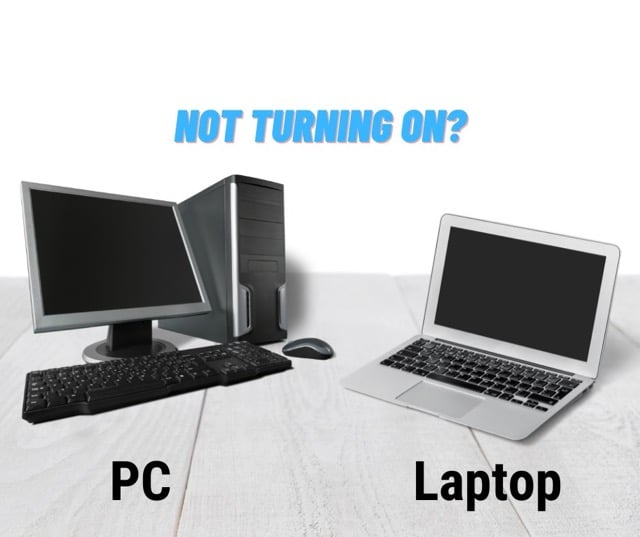
If your laptop won’t turn on, it’s easy to assume it’s completely dead.
In reality, many cases where a laptop won’t turn on are caused by simple issues such as a drained battery, a loose charger, or a system that needs a power reset.
Before replacing your laptop or paying for unnecessary repairs, follow the safe checks below.
This guide explains what to try first if your laptop won’t turn on, how to tell the difference between no power vs a black screen, and when it’s time for a professional diagnostic.
Quick Fixes if Your Laptop Won't Turn On (2–5 Minutes)
These steps resolve a large number of laptop won’t turn on problems and are safe to try at home.
Power Reset if Laptop Won't Turn On (Hard Reset)
A power reset clears leftover electrical charge that can block startup after a freeze, update, or power surge — a very common reason a laptop won’t turn on.
Turn the laptop off (if possible)
Unplug the charger
If the battery is removable, remove it
Hold the power button for 20–30 seconds
Reconnect the charger (leave the battery out for now)
Try turning the laptop on
If your laptop won’t turn on with the battery installed but powers on without it, the battery is likely faulty.
Check the Charger, Wall Socket & Charging Light
Power problems are often caused by the charger or power source, not the laptop itself.
Check the following:
Plug directly into a wall socket (avoid power boards)
Try a different wall outlet
Make sure the charger is firmly connected
Look for a charging LED (if your model has one)
Inspect the charger cable for cuts, bends, or heat damage
If the charging light flickers when the plug moves, the charging port may be worn or damaged.
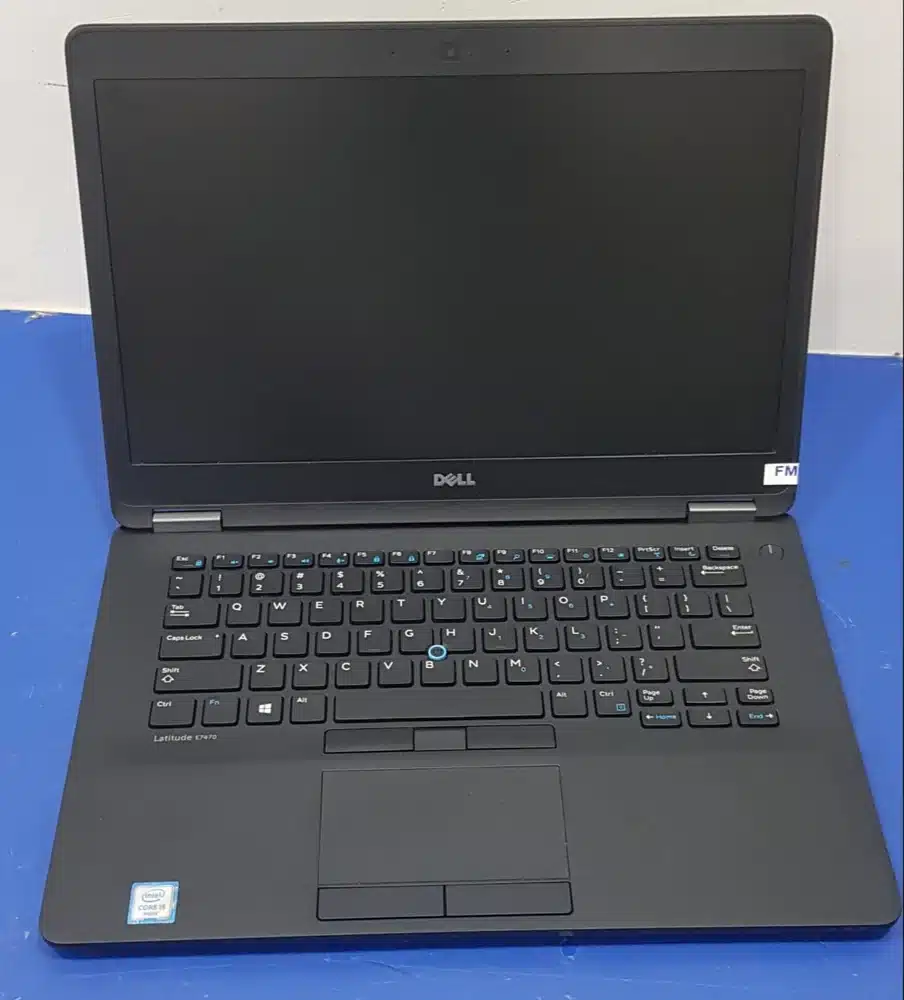
Battery “Wake-Up” Test
If the laptop hasn’t been used for a long time, the battery may be deeply discharged.
Leave the charger connected for 15–30 minutes
Then try turning the laptop on (with the charger still connected)
Laptop Won't Turn On: No Power vs Black Screen
Understanding this difference helps identify the real cause and avoids unnecessary repairs.
No Lights, No Fan, No Sound
If your laptop won’t turn on at all, this usually indicates a power delivery problem, such as:
Faulty charger
Damaged charging port
Failed battery
Internal power or motherboard fault
If there is no response at all after a power reset and charger check, a professional diagnostic is recommended.
Power Lights On but Screen Is Black
This is often not a power issue.
Possible causes include:
Screen brightness set too low
Backlight or screen failure
Display cable issue
RAM or SSD fault
Graphics or motherboard issue
Things to try:
Increase brightness using function keys
Connect an external monitor (HDMI)
Perform another power reset
If an external monitor works, the internal screen or display cable is likely faulty.
If Windows still won’t start, Microsoft explains safe recovery options like Startup Repair and System Restore here: Recovery options in Windows.
Common Causes of a Laptop That Won't Turn On
Battery failure or not charging
Loose or damaged charging port
Faulty charger or broken cable
Overheating shutdown (dust-blocked fan)
RAM or SSD preventing boot
Motherboard or power circuit fault
Liquid damage or corrosion
Continuing to power a laptop with a charging or power fault can cause serious motherboard damage.
Common Mistakes That Can Make the Problem Worse
Avoid these — they often increase repair costs:
Repeatedly powering on after liquid exposure
Forcing the charger at an angle
Using incorrect or low-quality chargers
Continuing to power on if there’s a burning smell
Ignoring a loose or wobbly charging port
When to Stop DIY and Get It Checked
Book a professional diagnostic if you notice:
Burning smell or melted plastic
Any liquid spill (even a small one)
Charger tip getting very hot
Charging port loose or moving
Laptop powers on only at certain angles
Repeated shutdowns or overheating warnings
Power-related issues can worsen quickly if forced.
If you’re based in Christchurch, our Wigram workshop provides professional diagnostics for laptops that won’t turn on — including charging port, battery, and motherboard faults. If your laptop won’t turn on after these checks, a professional inspection can prevent further damage — learn more about our laptop repair in Christchurch service. /laptop-repair/
What a Proper Laptop Diagnostic Includes
A professional diagnostic checks:
Charger and power input
Charging port condition
Battery and charging circuit
Internal board-level faults
RAM and storage boot issues
This avoids unnecessary part replacements and confirms the most cost-effective repair.
Frequently Asked Questions
Why won’t my laptop turn on even when plugged in?
Most commonly due to a faulty charger, damaged charging port, or battery/power circuit fault. A power reset and outlet test are the safest first steps.
How long should I charge before trying again?
If the battery is deeply discharged, charge for 15–30 minutes before attempting to power on.
Can overheating stop a laptop from turning on?
Yes. Thermal protection can shut a laptop down if it overheats. Cleaning or repair may be required.
Is it worth repairing a laptop that won’t power on?
Often yes. Charging ports, batteries, and many board-level issues cost far less than replacing the laptop.